How to Add a Digital Business Card to Google Wallet
A visual, step-by-step guide for Android. Takes about a minute — no extra app to install if you already have Google Wallet. Once it's saved, you can share your card with a tap.
Digital business cards are the modern replacement for paper cards. On Android, the best place to keep yours is Google Wallet — right next to your loyalty cards and boarding passes, ready to share with a scan.
Why Add Your Card to Google Wallet?
- One tap to open — no digging through browser tabs or apps.
- Scan-to-share QR — anyone can point their camera at your pass and save your contact.
- Native Android experience — recognized, trusted, and integrated with the OS.
Step-by-Step: Add Your Card to Google Wallet
You'll need an Android phone with the Google Wallet app installed. It's free from the Play Store if you don't already have it.
Open your card and tap “Google Wallet”
Open your LiftBiz card in Chrome on your Android phone (for example, myliftbiz.com/u/your-handle). Scroll to the Google Wallet button and tap it.
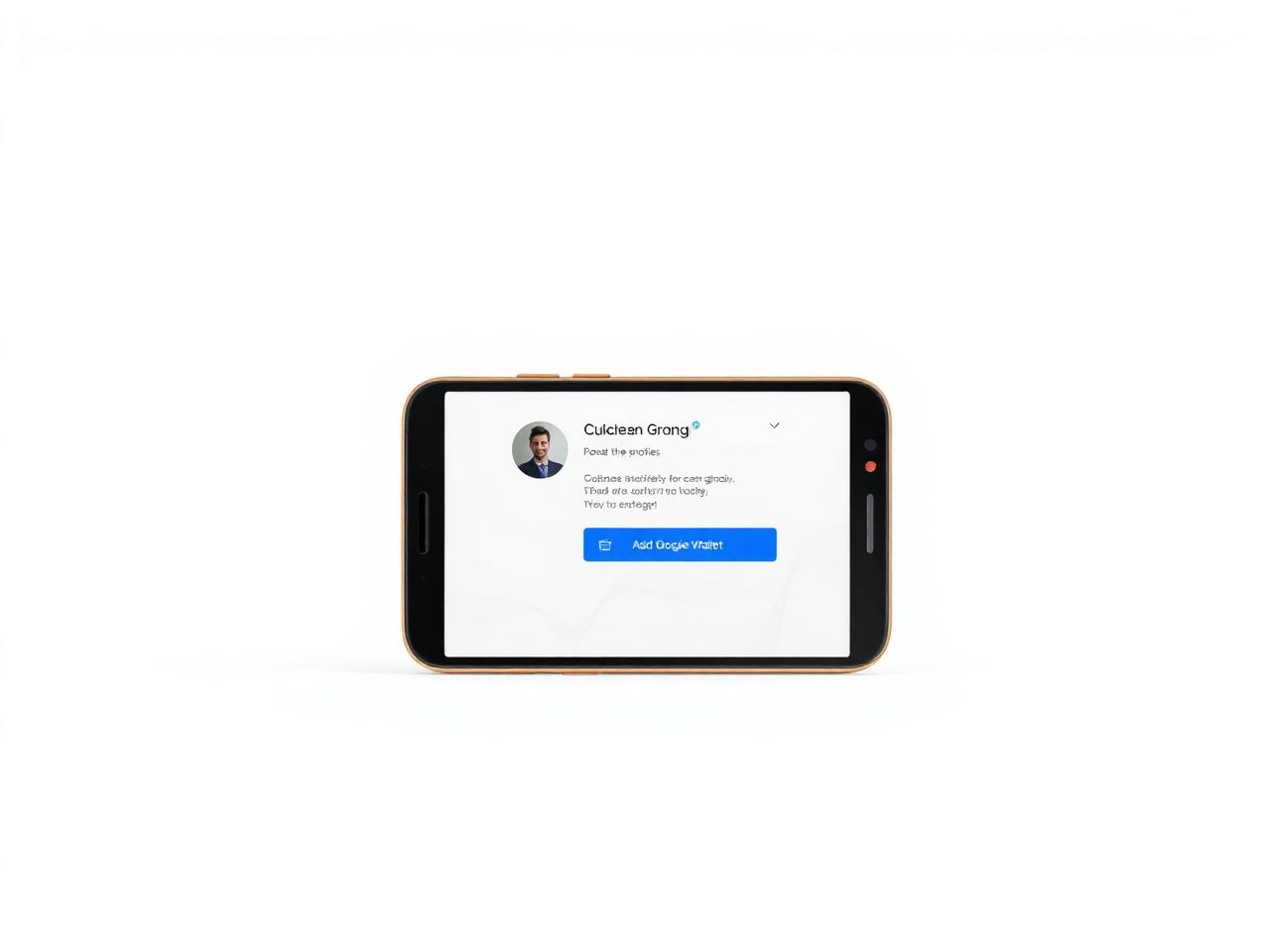
Review the pass and tap “Save”
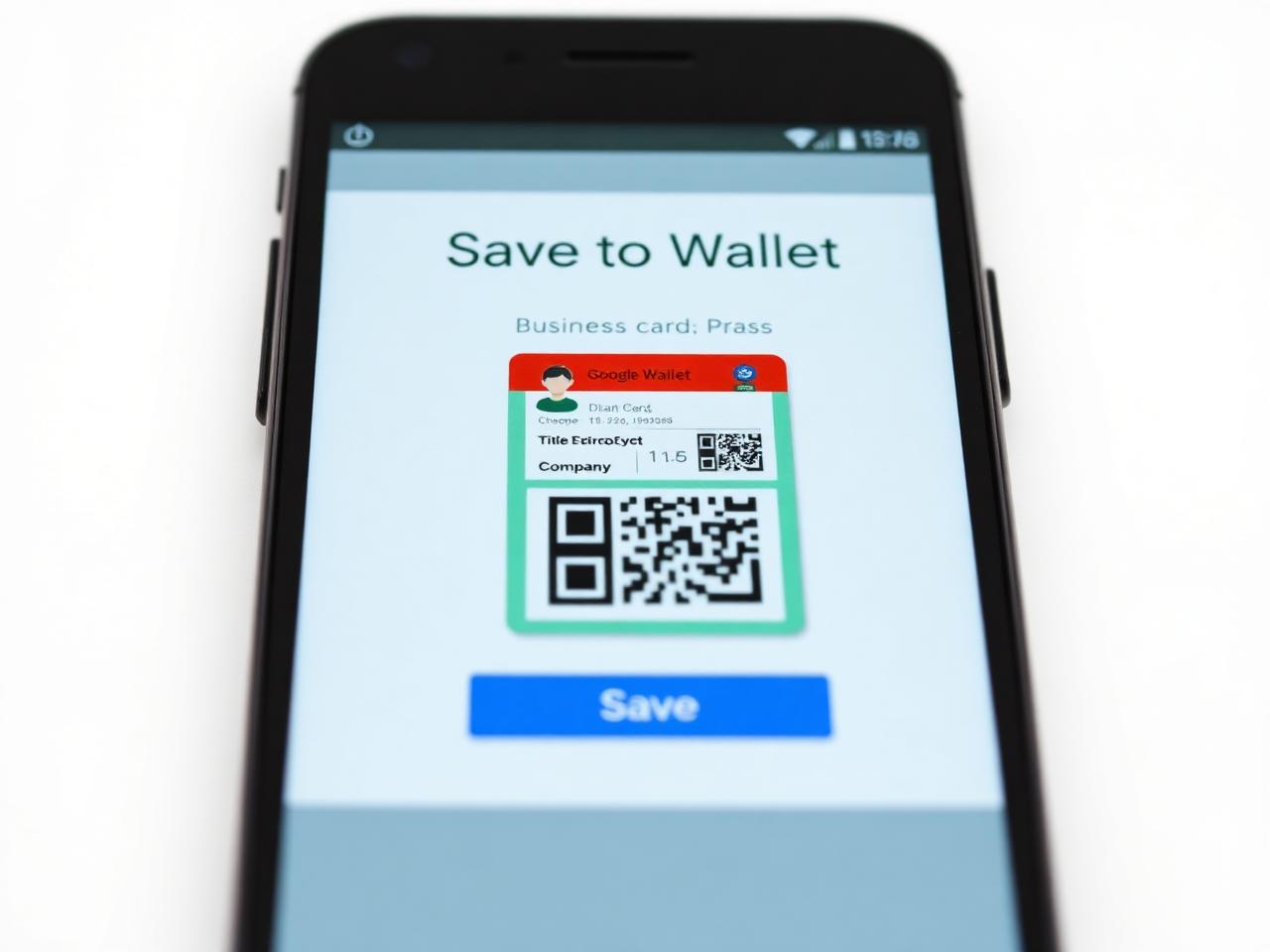
Google Wallet opens a Save to Wallet screen with a preview of your business card pass — your name, title, company, and QR code. Review it, then tap Save. Your card is now in Google Wallet.
Share it straight from the Wallet app
Open Google Wallet anytime and tap your card. Hand the phone over so someone can scan the QR code — they'll land on your live card and can save your contact details in one tap.
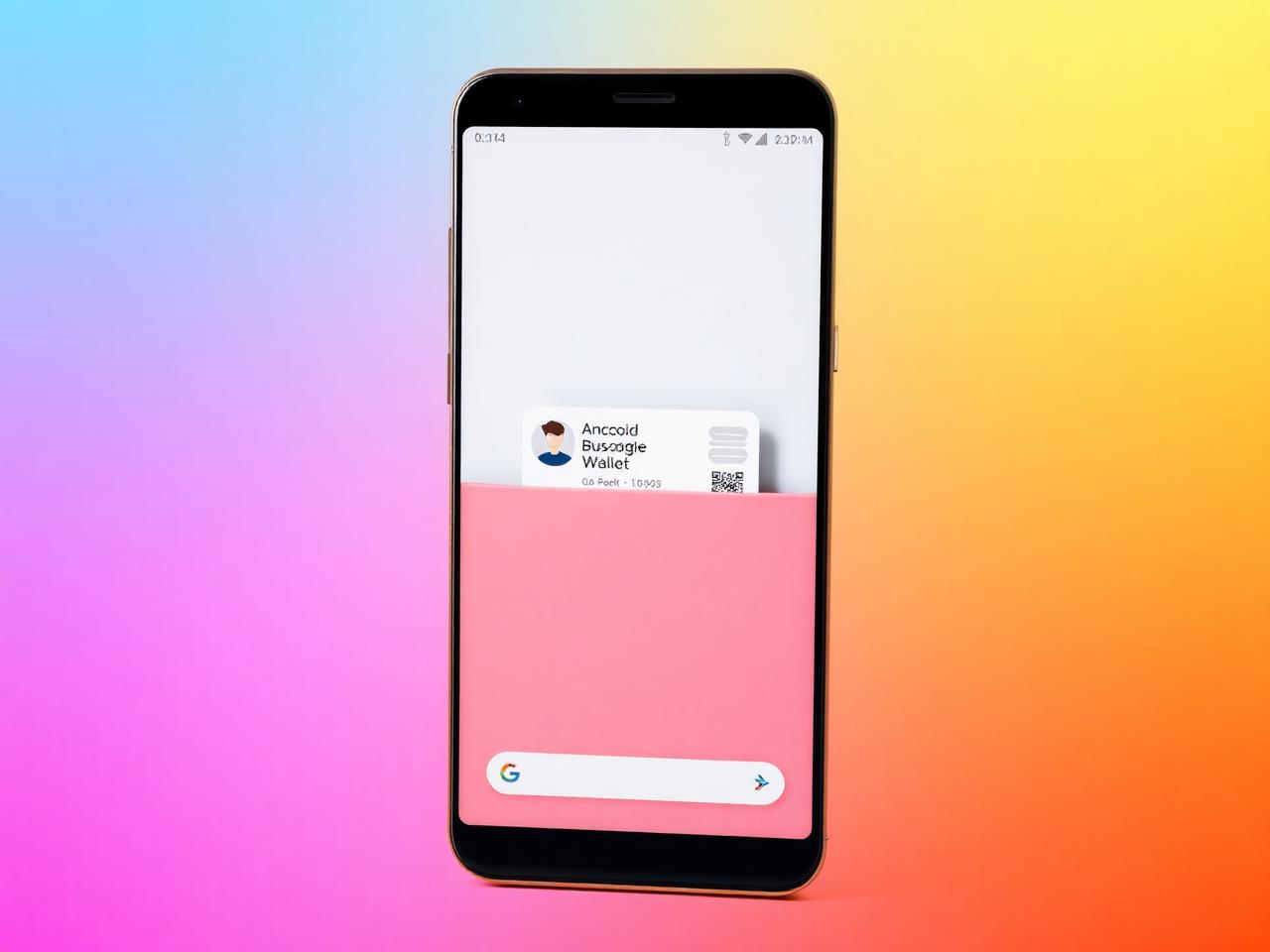
Google Wallet passes sync with your Google account, so if you switch phones your card comes with you. You can also share the pass directly from Wallet via Messages, email, or nearby share.
What Information Is Stored on the Pass?
Your Google Wallet pass includes the key details from your LiftBiz profile: name, job title, company, email, phone number, website, and a QR code that links back to your live card. When someone scans the QR code, they see your full profile and can save your contact details directly to their address book.
Troubleshooting Tips
- Don't see the “Google Wallet” button? It only appears on Pro cards. Upgrade from your billing screen to unlock wallet passes.
- Tap opens a “not configured” message? Make sure you're on the latest version of the site — hard-refresh the card page in Chrome and try again.
- Pass looks out of date? Wallet passes are generated when you save them. If you update your LiftBiz profile later, remove the old pass in Google Wallet and add it again to pick up the latest info.
- On iPhone? Use our Apple Wallet guide instead.
Ready to Add Yours?
If you haven't created your LiftBiz card yet, it takes less than two minutes. Build your card, share it with a link or QR code, and add it to Google Wallet for the ultimate Android networking tool.