Digital Business Card Email Signature Guide
Turn every email you send into a professional networking opportunity. Learn how to build a clean email signature that links directly to your digital business card.
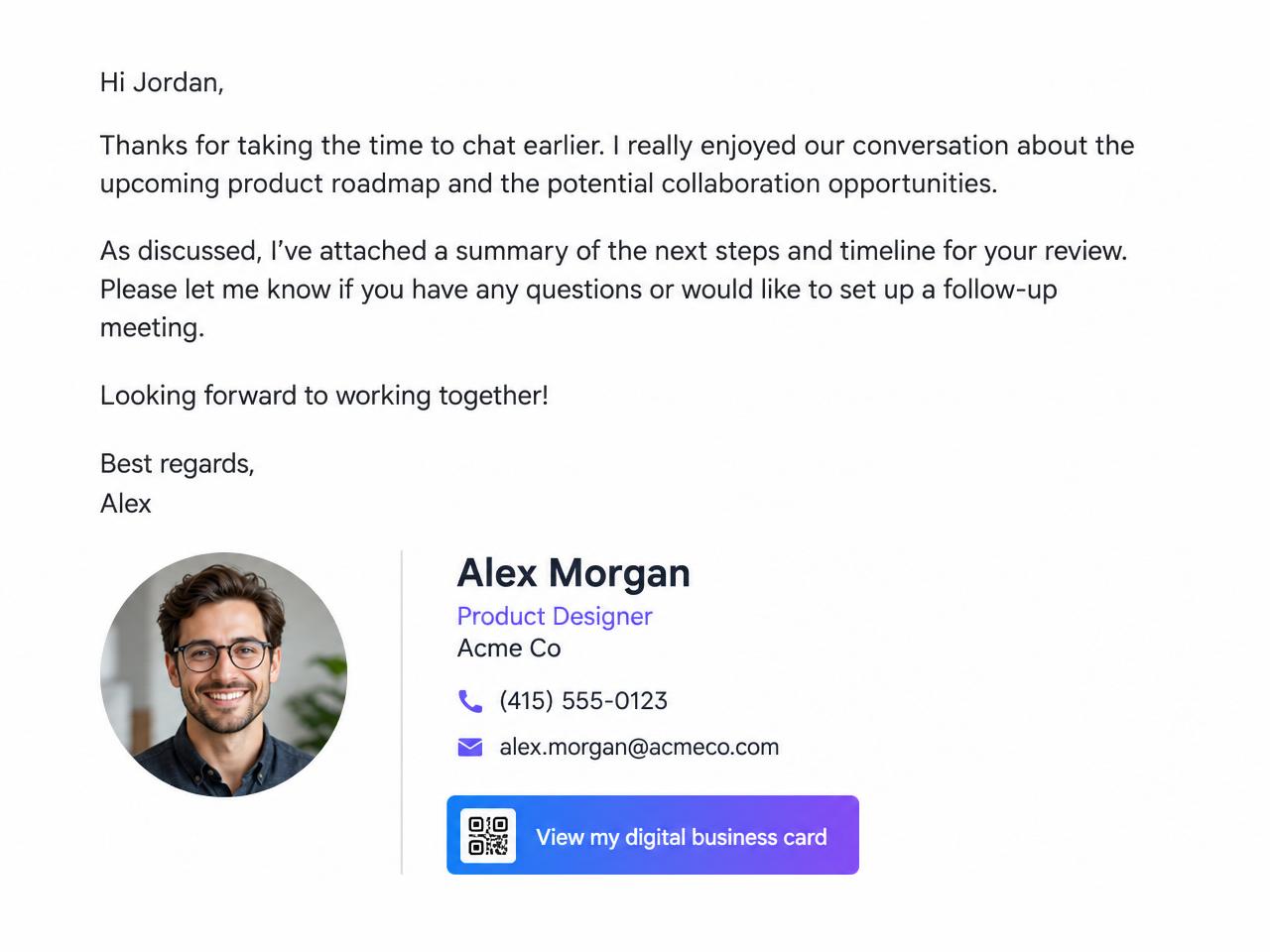
A strong business card email signature does more than list your name and title. It gives recipients one clear next step: visit your digital business card, save your contact, and connect with you in seconds. Whether you use Gmail, Outlook, or Apple Mail, the setup takes less than five minutes.
Why Add a Digital Business Card to Your Email Signature?
- Every email becomes a shareable touchpoint — no attachment or PDF needed.
- One link, always up to date — change your details on your LiftBiz card and the signature stays current.
- Mobile-friendly — recipients tap the link on any device and save your contact instantly.
What to Include in Your Email Signature
Keep your signature short and scannable. The best business card email signatures include:
- Your full name and job title
- Company name and logo (optional)
- Phone number and email address
- A clear call-to-action linking to your digital business card
Step-by-Step: Add Your Digital Business Card to Any Email Client
Open your email signature settings
Each email client stores signatures in its settings panel:
- Gmail: Settings → See all settings → Signature.
- Outlook: File → Options → Mail → Signatures.
- Apple Mail: Mail → Settings → Signatures.
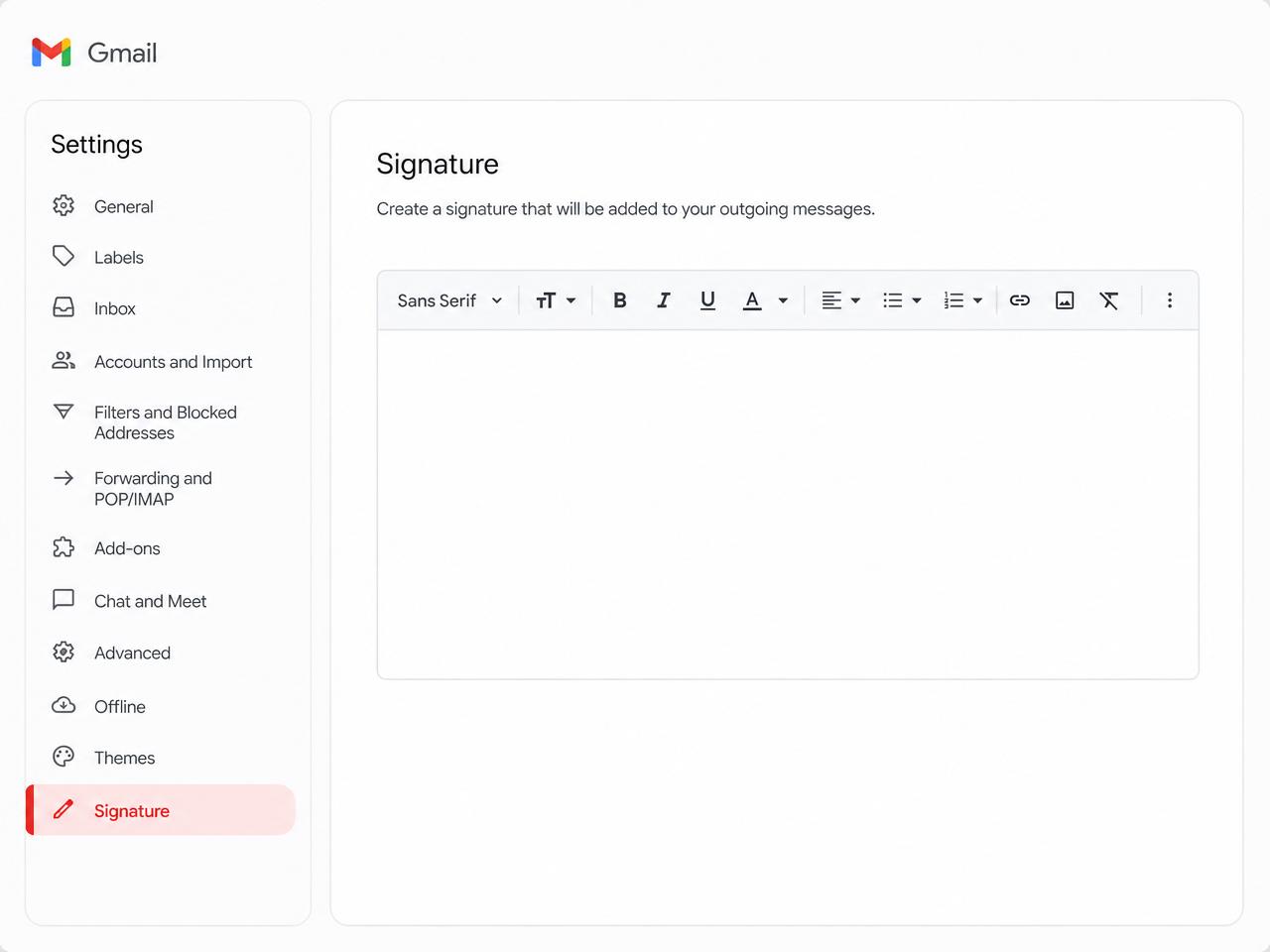
Build your signature and add your digital business card link
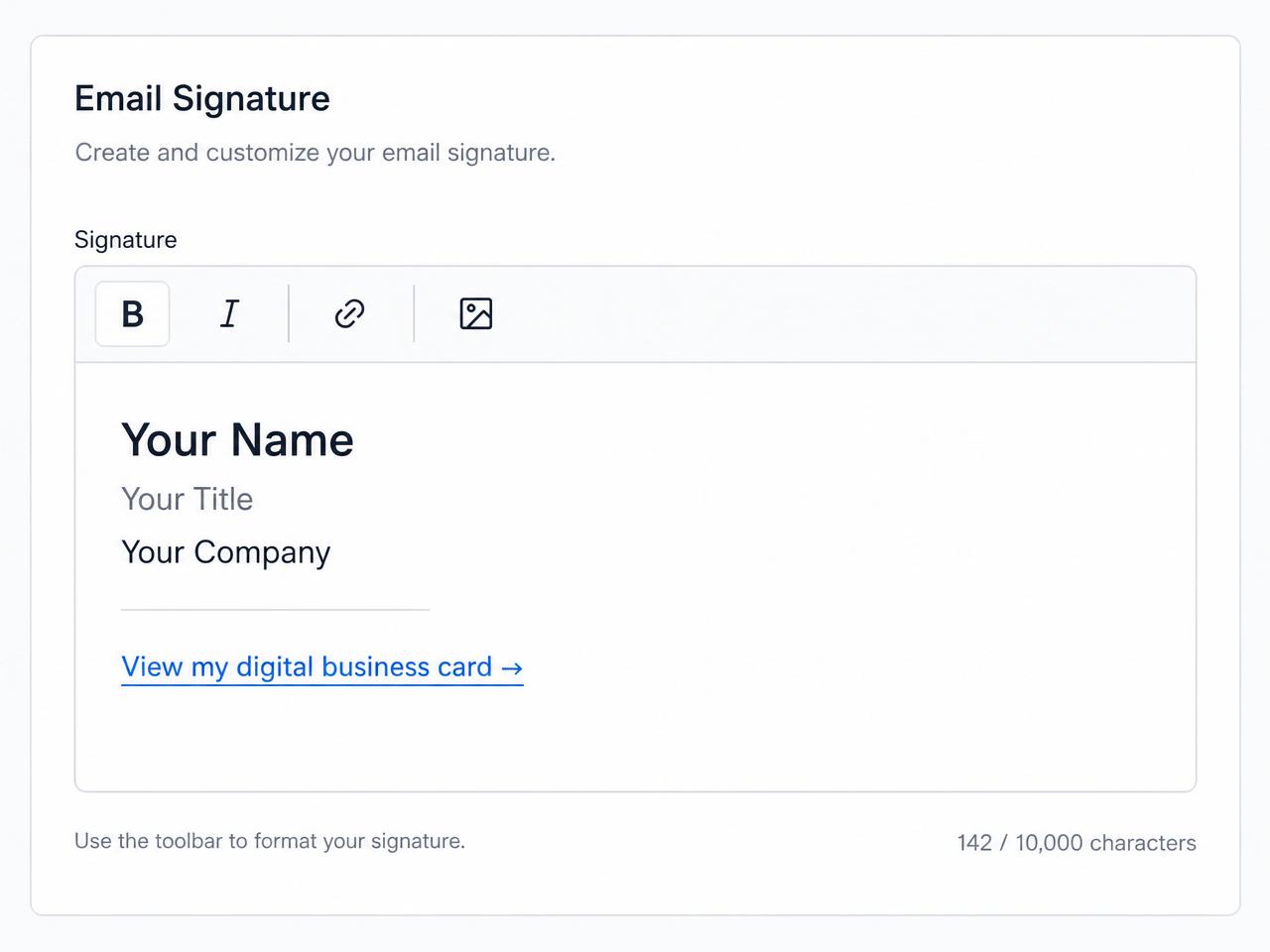
Type your contact details, then add a clear call-to-action. Highlight text like “View my digital business card” and link it to your LiftBiz card URL, for example myliftbiz.com/u/your-handle.
Save and test your new signature
Save the signature, compose a test email to yourself, and click the link to make sure it opens your live digital business card. If you update your LiftBiz profile later, the signature link automatically reflects the latest version.
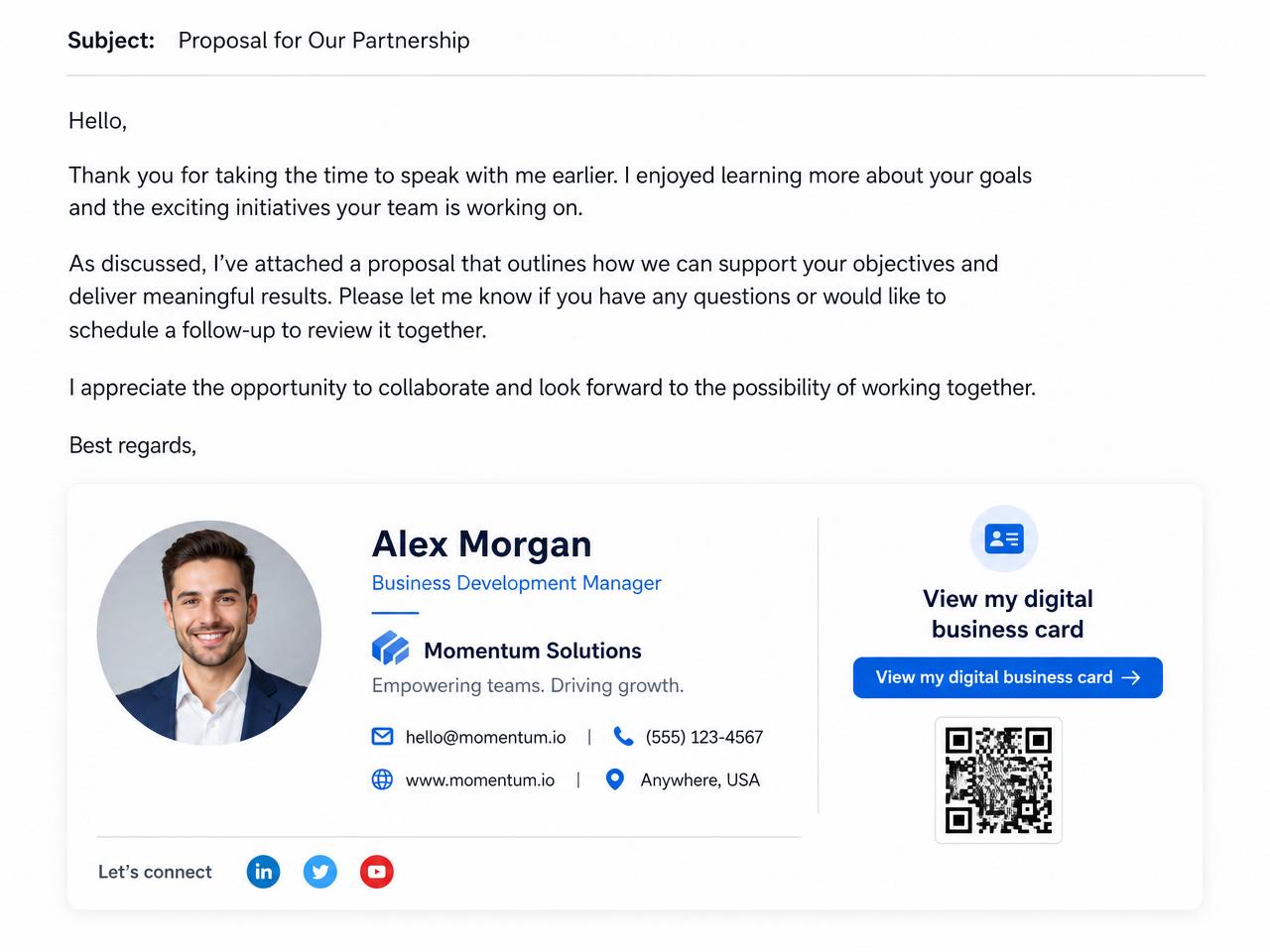
Pro tip: keep your signature under five lines. A clean, focused signature is more likely to be read, and a single strong call-to-action outperforms a cluttered footer.
Email Signature Best Practices
- Use a real link, not a QR code image. Most email clients block remote images by default, but text links always render.
- Match your brand colors. Use your company’s font and accent color so the signature feels like part of your identity.
- Make the CTA action-oriented. Phrases like “View my digital business card” or “Save my contact details” get more clicks than generic “Click here.”
- Test on mobile. Over half of emails are opened on phones. Make sure your signature is readable on a small screen.
Already Have a LiftBiz Card?
Your card URL is the only link you need. Copy it from your dashboard, paste it into your signature, and every recipient can save your contact with one tap. If you also want to share your card from your phone, add it to Apple Wallet or Google Wallet.
Ready to Build Your Digital Business Card?
If you do not have a LiftBiz card yet, it takes less than two minutes. Create your card, grab your personal link, and add it to your email signature today.